Backup Synology to Unraid

The easiest way to backup a Synology NAS to Unraid Server is to use Hyper Backup on Synology and rsync on Unraid.

Click to Read More

First, enable rsync on your Unraid Server. It is preinstalled but not running as a daemon.

Create a file /boot/custom/etc/rsyncd.conf with the following content:

uidย  ย  ย  ย  ย  ย   = root
gidย  ย  ย  ย  ย  ย   = root
use chrootย  ย  ย  = no
max connections = 4
pid fileย  ย  ย  ย  = /var/run/rsyncd.pid
timeoutย  ย  ย  ย   = 600

[backups]
ย  ย  path = /mnt/user/backups
ย  ย  comment = Backups
ย  ย  read only = FALSE

Here above:

  • The name “backups” between brackets will be visible as “backup module” from the Synology. You can create several blocks like this one.
  • The “path” (here /mnt/user/backups) must exist on your Unraid server (create this one as a shared folder, to be able to access the backup later from any PC)
  • Notice: the folder /boot should exist. But you could possibly have to create the subfolders /custom/etc

ย 

Next, create a file /boot/custom/etc/rc.d/S20-init.rsyncd with the following content:

#!/bin/bash

if ! grep ^rsync /etc/inetd.conf > /dev/null ; then
cat <<-EOF >> /etc/inetd.conf
rsyncย   streamย  tcpย  ย   nowaitย  rootย  ย  /usr/sbin/tcpdย  /usr/bin/rsync --daemon
EOF
read PID < /var/run/inetd.pid
kill -1 ${PID}
fi

cp /boot/custom/etc/rsyncd.conf /etc/rsyncd.conf

Finally, add the following line in the file /boot/config/go :

#!/bin/bash
bash /boot/custom/etc/rc.d/S20-init.rsyncd

ย 

Now, either reboot or execute: bash /boot/custom/etc/rc.d/S20-init.rsyncd

ย 

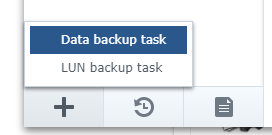
Go now on your Synology and open “Hyper Backup” to Create a new Data Backup Task:
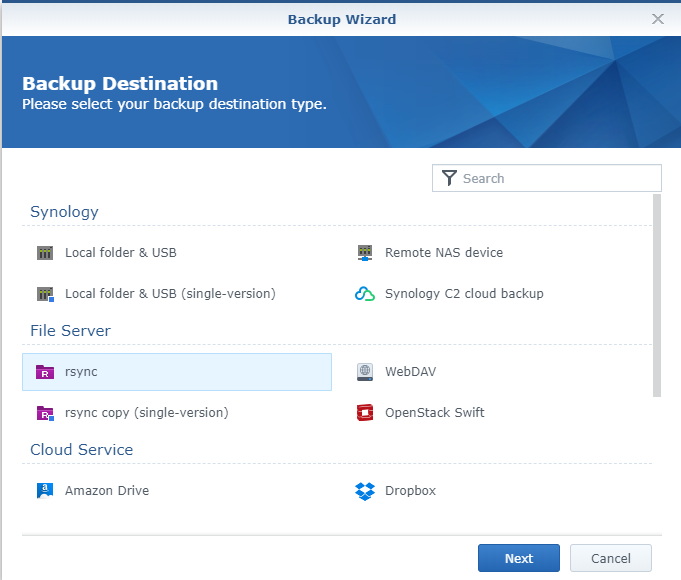
Select rsync as Backup Destination:
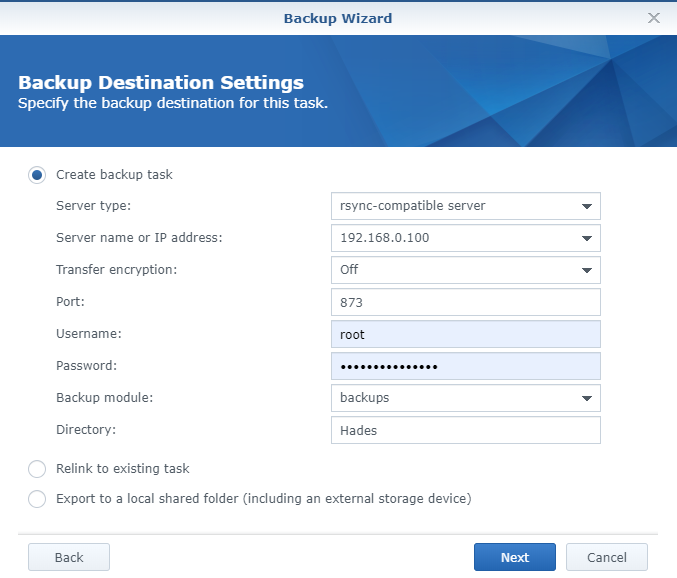
And Create the backup Task with “rsync-compatible server” as Server Type:
In order to access the backup and retrieve files from a PC, use the application “Hyper Backup Explorer” from Synology and open the backup file .bkpi located under \\<YourServer>\backups\<Yourbackup>.bkp\

Loading


Categories:

Tags:


Comments

48 responses to “Backup Synology to Unraid”

  1. danny Avatar
    danny

    Thanks for this – great explanation and worked for me.
    (note to execute /boot scripts in unraid >6.8, must use “bash /boot/…..” )

    1. Valery Letroye Avatar

      Thx for the feedback. I did update my notes with your comment for unraid 6.8

  2. Matt Avatar
    Matt

    Excellent description and how to. Thank you. I had seen something similar on other sites, but it wasn’t as clear as this one.

    One question though. I rebooted my unRAID server and the /boot/custom/etc/rc.d/S20-init.rsyncd did not execute. I do have that line within the go file in /boot/config/. I needed to manually run the “bash /boot/custom/etc/rc.d/S20-init.rsyncd” command for my Synology HyperBackup to see the rsync server as online.

    1. Valery Letroye Avatar

      As mentioned by Danny, since unraid 6.8, one must use bash in front of the command.

      It is mentioned in the 6.8 release notes that the security of the flash drive has been tightened and files located there can no longer have execute permission. Option now available are:
      – Add the command before the script name. E.g. bash scriptname
      – copy the script elsewhere and then give them execute permissions
      – use the User Scripts plugin to run the script.

      So, in /boot/config/go, instead of :
      /boot/custom/etc/rc.d/S20-init.rsyncd
      one must use:
      bash /boot/custom/etc/rc.d/S20-init.rsyncd

  3. Nicky Avatar
    Nicky

    Thank you for posting this. Very helpful.
    I had the same situation as Matt. Do you know how to resolve this so on the next reboot the command is executed automatically as it should? Thanks

    1. Valery Letroye Avatar

      I just answered Matt and did adapt my original post ๐Ÿ˜‰

  4. RandomGuy Avatar
    RandomGuy

    Amazing guide, just one suggestion. Specify that it might be needed to create the /custom folder. I was confused as to if I had to create it or if it had to be enabled somewhere. Thanks!

    1. Valery Letroye Avatar

      Thx ! I did update my notes accordingly.

  5. GC Avatar
    GC

    Hi, this looks like what I am looking for. Trialing Unraid currently. have 5 Synology boxes I have accumulated over the last 10 years and am wanting to replace 3 of them with an Unraid server.

    You lost me when you with this “Create a file /boot/custom/etc/rsyncd.conf with the following content:”

    Using the Unraid admin panel, MAIN page I have tried looking on my flash drive and storage drives and can’t see a /boot directory. Where is this?

    I have another 15 days left to try and get this to work before deciding whether I buy Unraid or not. So my experience with it and Linux in general is only a mere 15 days and therefore pretty limited. A shame no one has written an app to do this as I suspect a lot of Synology users are looking for a method to get this running since Synology’s powerful systems are all insanely priced. I had hoped “dmacias72” NerdPack would have had a simple check box for getting the service running.

    Thank you for your help.

    1. Valery Letroye Avatar

      In my case, the folder /boot was already created.
      But I was not using the Web GUI to access it. I did it from within a shell…

  6. Matthew Sharp Avatar
    Matthew Sharp

    I’m trying to get this set up (new to unraid) and running into the following error when running the “bash /boot/custom/etc/rc.d/S20-init.rsyncd”

    /boot/custom/etc/rc.d/S20-init.rsyncd: line 2: $’\r’: command not found
    /boot/custom/etc/rc.d/S20-init.rsyncd: line 11: warning: here-document at line 4 delimited by end-of-file (wanted `EOF’)
    /boot/custom/etc/rc.d/S20-init.rsyncd: line 12: syntax error: unexpected end of file

    Unraid 6.8.3

    1. Valery Letroye Avatar

      Did you create your files on a Windows PC before transferring them on the unraid ?
      It seems that the encoding is not correct.

      1. Matthew Sharp Avatar
        Matthew Sharp

        I did create them on windows. How would I go about creating them in unraid?

        1. Valery Letroye Avatar

          You are new to Linux I presume ?
          You should connect on your unraid using a SSH console (I suggest “Putty” : https://www.putty.org/)
          Log into unraid (by default, I think you should be able to use the login ‘root’)
          Edit the file with the text editor ‘nano’. Type in the SSH console: nano /boot/custom/etc/rc.d/S20-init.rsyncd
          Copy the text from my post and right-click into nano to paste it
          Press CTRL-X to save
          Press Y to confirm
          Press Enter to complete

          1. Matthew Sharp Avatar
            Matthew Sharp

            Hi Valery!

            I am indeed new to linux. I’m a video editor, and trying to get an unraid server set up, to back up our main synology server. Unfortunately, because of covid, I’m having to cross function in IT as well.

            I appreciate your patience.

            I downloaded putty, and successfully logged into the server. I was also able to edit the S20-init.rsyncd properly using your instructions.

            I moved back to the unraid terminal, and executed “bash /boot/custom/etc/rc.d/S20-init.rsyncd”

            This is what I received in terminal
            root@Tower:~# bash /boot/custom/etc/rc.d/S20-init.rsyncd
            /boot/custom/etc/rc.d/S20-init.rsyncd: line 2: $’\r’: command not found
            /boot/custom/etc/rc.d/S20-init.rsyncd: line 11: warning: here-document at line 4 delimited by end-of-file (wanted `EOF’)
            /boot/custom/etc/rc.d/S20-init.rsyncd: line 12: syntax error: unexpected end of file

            I appreciate any additional help you could provide!

          2. Matthew Sharp Avatar
            Matthew Sharp

            Yikes, I just realized that I’m received the exact same result as the original files, created in windows.

            Should I delete the files created in windows, and recreate them using putty?

          3. Valery Letroye Avatar

            Yes, you better have to delete the files created with Windows, using the command “rm”:
            rm /boot/custom/etc/rsyncd.conf
            rm /boot/custom/etc/rc.d/S20-init.rsyncd

            Next recreate them with the text editor “nano”.
            The problem is due to Windows using a “Carriage Return” (CR) + a “Line Feed” (LF) to end the lines, while *nix (linux, unix,…) are using only a “Line Feed” (LF)

            Next… if you still have the problem (weird as I did exactly the same), I could suggest another approach (a tip for you if you prefer to edit *nix files on Windows):

            Use the text editor “Notepad++” on Windows to open those files and check their encoding (via the “Encoding” menu of Notepad++).
            If it’s not “ANSI”, use the menu “Encoding > Convert to Ansi”
            Then, just to be 100%, use also “Edit > EOL Conversion > Unix (LF)”
            And save the files back to Unraid.

            If it still does not work (I would be lost), you can use the hard way to remove the \r with the following command in the SSh console (via Putty):

            sed -i ‘s/\r$//’ /boot/custom/etc/rsyncd.conf
            sed -i ‘s/\r$//’ /boot/custom/etc/rc.d/S20-init.rsyncd

          4. Matthew Sharp Avatar
            Matthew Sharp

            It’s working perfectly now!

            I deleted the files, and recreated them using nano, in putty, as you described above. I really appreciate your guidance through this process.

            Thank you so much for your help Valery!

  7. loco Avatar
    loco

    does this solution also work when you want to backup from a Synology to an off-site Unraid server?

    1. Valery Letroye Avatar

      Yes, if the remote port is opened. But for security reasons, you would need to :
      – use another account than ‘root’ and
      – use rsync over ssh (I didn’t try that but found a tutos in French here: https://www.nas-forum.com/forum/topic/55118-tuto-sauvegarde-hyper-backup-vers-un-serveur-distant-rsync-avec-chiffrement-du-transfert/)

  8. Orlando Avatar
    Orlando

    Hi – this is a great explanation. I’m a newbie so I am struggling with the basics:
    Assuming that it is boot on the flash drive, which I am struggling just to create the actual scripts. I get an error on not being able to create the scripts. I can’t create the custom/etc directory either. How do I do that?
    Thanks!

    1. Orlando Avatar
      Orlando

      Never mind!!! I brute forced myself into doing everything in a shell!

  9. Andrew Avatar
    Andrew

    Hi, I’ve followed your instructions but I am unable to get the HyperBackup to connect when it searches for the ‘Backup module’. I get this:

    “The operation failed. Please log in to DSM again and retry.”

    – is there a way to check everything is running fine on the unRAID server for rsync?
    – is there a way to get more details from the Synology side?

    Help much appreciated.

    1. Valery Letroye Avatar

      Are you using DSM 6.x or 7.x (beta) ? This is a message I often have with DSM 7.x but never with 6.x.

      To be sure your Rsync Server is running fine on Unraid, check if the file /var/run/rsyncd.pid contains a valid process id (+ check it’s still running via ps command)
      Next you could try to connect onto it with a Rsync Client on your PC (Windows); The easiest would be with the trial of https://acrosync.com/windows.html

      1. Andrew Avatar
        Andrew

        For some reason its not creating the rsyncd.pid file. I’ve tried specifying a different directory for that file too but its not creating it there either. For now I am just running sync on UnRAID to copy from a share on the NAS…and I’ll cron it.

        1. Andrew Avatar
          Andrew

          Ok, no idea if I did something…maybe one of the chmod settings, but its all working now!! ๐Ÿ™‚

  10. Bill Clinton Avatar
    Bill Clinton

    Hi folks. This looks like just what I need to get running to copy from my synology camera box to my unraid server. Before I create these files I wanted to be sure I understand where they need to go? I assume copied to the USB drive? I started to use Krusader and realized it points to the internal folder structure of the docker container.

    1. Bill Clinton Avatar
      Bill Clinton

      I have everything completed and tested the server on unraid terminal and it appears to work.

      root@unraid:~# rsync rsync://192.168.1.24
      backups Backups # Modual Description

      But I can not reach it via hyper backup. It appears to find the backups rsync folder but lastly I get failed to connect to backup destination on the hyperbackup program. Any suggestions? So close! ๐Ÿ™‚

      1. Valery Letroye Avatar

        You mention that you cannot reach the rsync service on Unraid from Hyper Backup, but Hyper Backup finds the rsync folder ?
        So… the error occurs when Hyper Backup starts the files transfer ?

  11. taj Avatar
    taj

    Hi Buddy,
    Thanks a lot. I followed the instructions as it is and everything working correctly. I cannot say how much I appreciate your efforts in making this article.

  12. grunter Avatar
    grunter

    I want to be able to backup my Synology NAS to unRAID using Hyper Backup from this great post which does exactly what I want to do. I don’t really want to go the opposite direction which looks a bit easier. I can’t get my Synology NAS to connect using the methods described in the post. The Synology shows a connection error when Hyper Back runs at the “Backup module:” and “Directory:” fields. When I run /boot/custom/etc/rc.d/S20-init.rsyncd from the unRAID command line, I get “permission denied”. I have carefully checked the various entries in the post above. Not too sure how to debug this other than starting it all again from scratch… Appreciate any help that can be offered.

    1. Valery Letroye Avatar

      I forgot to answer your question. I had no idea how to debug this and thought I should take some time to look at my own installation for further details first. But I couldn’t find time to do so yet…

      1. grunter Avatar
        grunter

        Thanks, look forward to any light you can shed on my problem.

  13. Steve Avatar
    Steve

    Thanks for sharing, this worked perfectly! One question- why the need for the cp command? why not edit /etc/rsyncd.conf ?

    1. Valery Letroye Avatar

      This file is reverting at reboot. That’s why I need to recopy it each time.
      At least, it used to be the case when I made this post…
      see https://forums.unraid.net/topic/56080-etcrsyncdconf-and-etcrscyndsecrets-keep-reverting-i-think-on-reboot/

  14. Steve Avatar
    Steve

    Any tips for speeding up the process? I find the network activity goes through spikes where bandwidth is pretty good 80-90MB/sec and then drops to 5-10MB/sec. I thought this could be from UNRAID data writing speeds so I set the Mover to move files from the cache disk at 50% full (500GB) and added the CA mover tuning plugin. It’s faster than no cache disk and writing directly but can’t get a steady stream of data going for the backup process. 26TB is taking almost a week.

    1. Valery Letroye Avatar

      To be honest, I am not an expert enough in rsync and unraid to investigate such perf issues… I can only confirm that Hyper Backup is also already super slow for me…, even if I can both read & write, e.g., videos of 4GB at +100MB/s (via Samba).

      Using rsync from a PC, one could test which part is the slow one: Hyper Backup or Unraid.

  15. Greg Obrigavitch Avatar
    Greg Obrigavitch

    I am planning to do this, but have a couple questions first

    Can backups be capitalized. I have a share already created called Backups so I’d like to use that if possible

    After this line – “Finally, add the following line in the file /boot/config/go” You actually have 2 lines listed. Should both lines be added or only the first. If just the first what is the second line for?

    Thank you for doing this as I’d have no clue how to do it otherwise

    1. Valery Letroye Avatar

      Yes, path can be capitalized. But use the correct case as Linux is case sensitive (so, both Synology and unraid).

      If the file is empty, enter both lines. If it is not, then the first line should already be there. So you will only have the add the second one.

  16. Mike Avatar
    Mike

    Used this guide today with Unraid 6.9.2, DSM 7.1 and Hyper Backup 3.0.2. Works like a champ! Thank you for creating this guide.

  17. Thomas Avatar
    Thomas

    Hey! Thanks for the guide first of all – used with a DSM 7.0 and Unraid 6.10-rc3 and everything seems to be working.

    Now, please excuse the the newbie question. I can see in DSM that the task is finalized and all the data is backed up. When I open the corresponding folder in Unraid, I see a Folder.hbk folder which if I open it contains a lot of files, but not the the ones that I am expecting. Basically I cannot see the actuall folders and files from DSM that I wanted synced. I am assuming this is correct, but my expectation was to have the actual files, so that in case my NAS dies, I have everything backed up and easily accessible on my Unraid.

    What am I missing in the behaviour of rsync?

    1. Valery Letroye Avatar

      To be honest, I didn’t try myself (And I am far from my PC, being on holidays). I think this is due to the way Synology is backuping it’s files.

      Try to restore some files to be sure the backup is properly done.

      1. Valery Letroye Avatar

        One more piece of info: Hyper Backup is creating a file named .bkpi under
        This files “describes” the backup.

        You can open it with the application “Hyper Backup Explorer”, which is available on the website of Synology.
        This is the way recommended by Synology to explorer their backup.
        But it works only to open a “local” bkpi or a backup on their Cloud Storage “C2”.

        In my case, the folder /mnt/user/Backups is accessible from any Windows PC, as it’s a shared folder of my unraid server.
        So, I can open the file bkpi using the path \\\Backups\.hbk within “Hyper Backup Explorer”

        And just in case: via that way, I confirm that I can see all my backup files within Hyper Backup Explorer ๐Ÿ˜‰

    2. Abdel; Avatar
      Abdel;

      You have to select rsync (single-version) when you create the hyperbackup task. That’s the one that will copy files over 1:1 instead of making them into hyperbackup’s .hbk format

  18. Laurent Avatar
    Laurent

    Hey,
    Thanks for the post. I’ve followed the instructions and everything seems to be OK but i’m not able to finish the configuration with HyperBackup : in the first window, i’m able to reach the Unraid server and i’m able to see the “Backups” directory but when i select the directories to backup in the Hyper Backup and i click to the next button, the connection fails.
    Do you have any idea to solve the problem ?
    Thanks in advance for your help.

    Here is my configuration : Hyper Backup v3.0.2 / DSM 7.1

    1. Laurent Avatar
      Laurent

      Hey,

      I found the problem : the backup directory was not created on the Unraid server…
      Everything is now working perfectly.
      Thanks once again for this guide.

      1. Valery Letroye Avatar

        Great! (Sorry for not answering earlier… I am enjoying some holidays far from my PC ๐Ÿ˜Š)

  19. Mike Maloney Avatar
    Mike Maloney

    This still works once you get past the Linux newbie problems and typing errors! Just what I was looking for. Thanks.

Leave a Reply

Your email address will not be published. Required fields are marked *