Some notes for myself, in case I have again to reconfigure my Water Meter from Smart Gateways.
Expand to Read More…
I have two Smart Meters from SmartGateways and both can be configured using this documentation, including my Water Meter.
But here are the steps with screenshots:
First, connect your Smart Meter to a power supply on 5V 1A (Notice: I had frequent reboot and connection issues with one of mine. Using a power supply of 2A solved the problem)
Then, connect on the Wifi network created by the Smart Meter
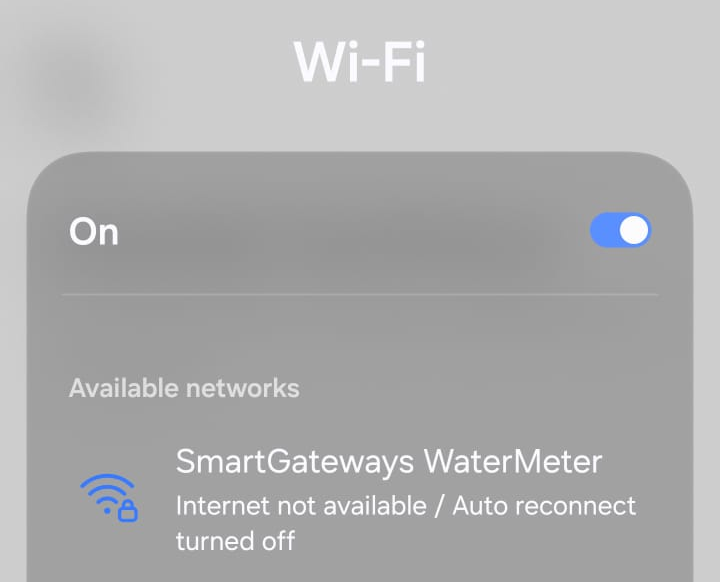
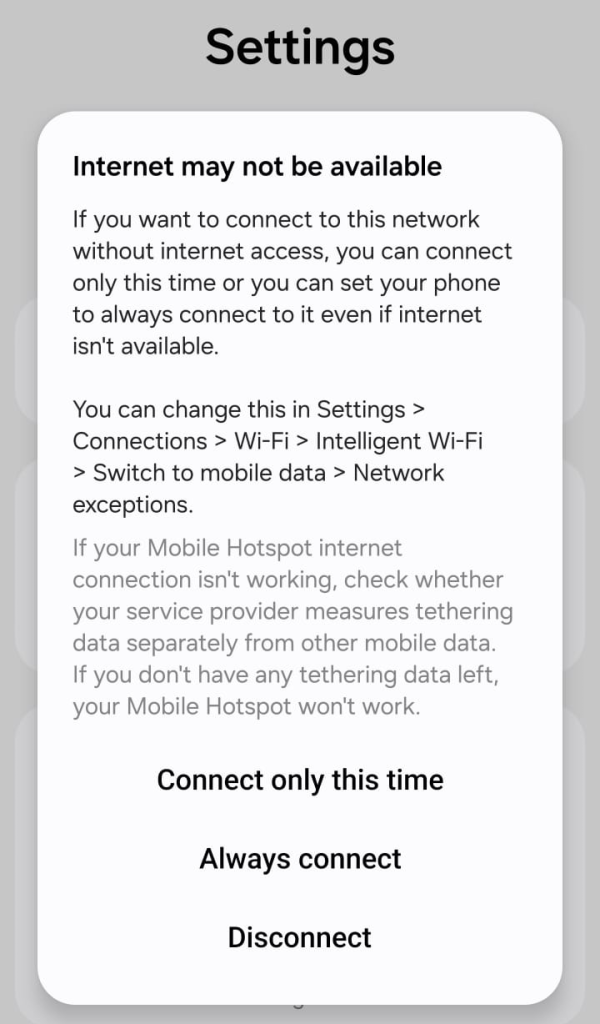
Accept to connect this time on that network
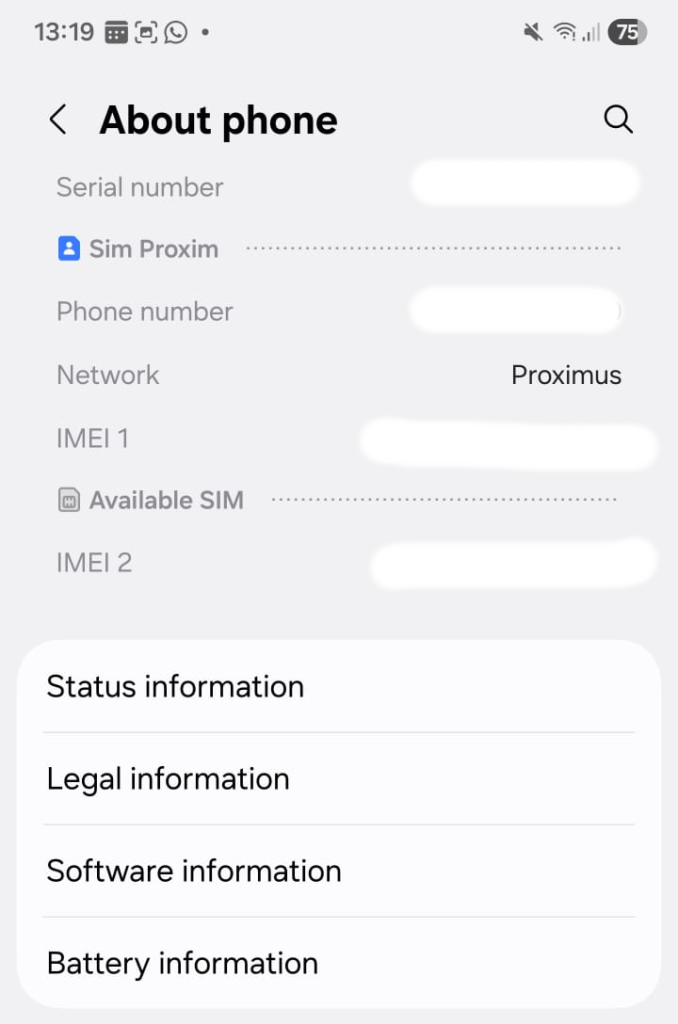
Go to you phone settings > About Phone > Status Information, to check it’s new IP
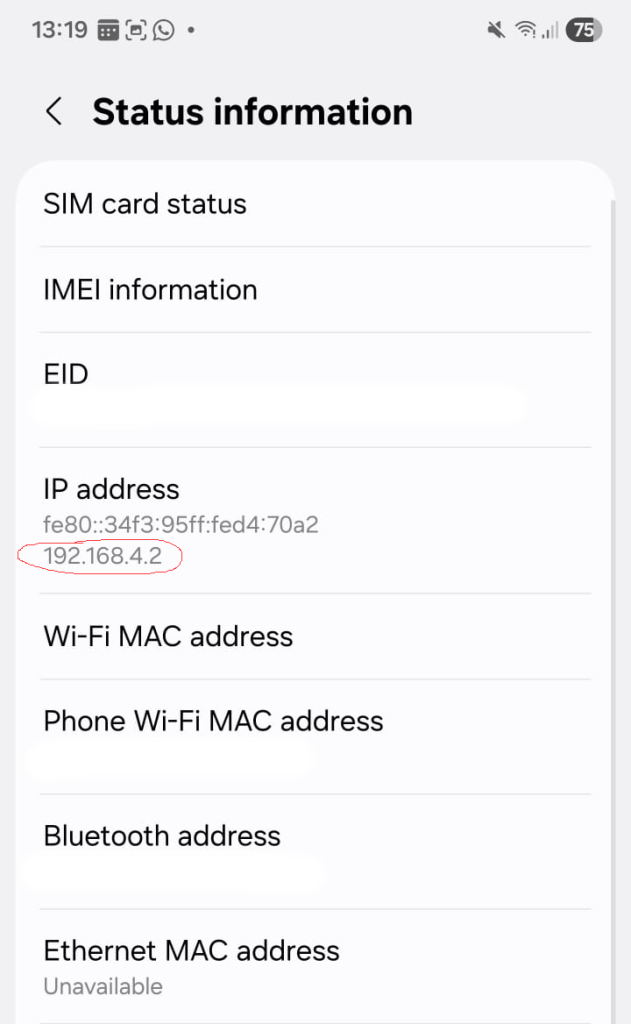
Connect to the host “1” on that IP. So here, 192.164.4.1
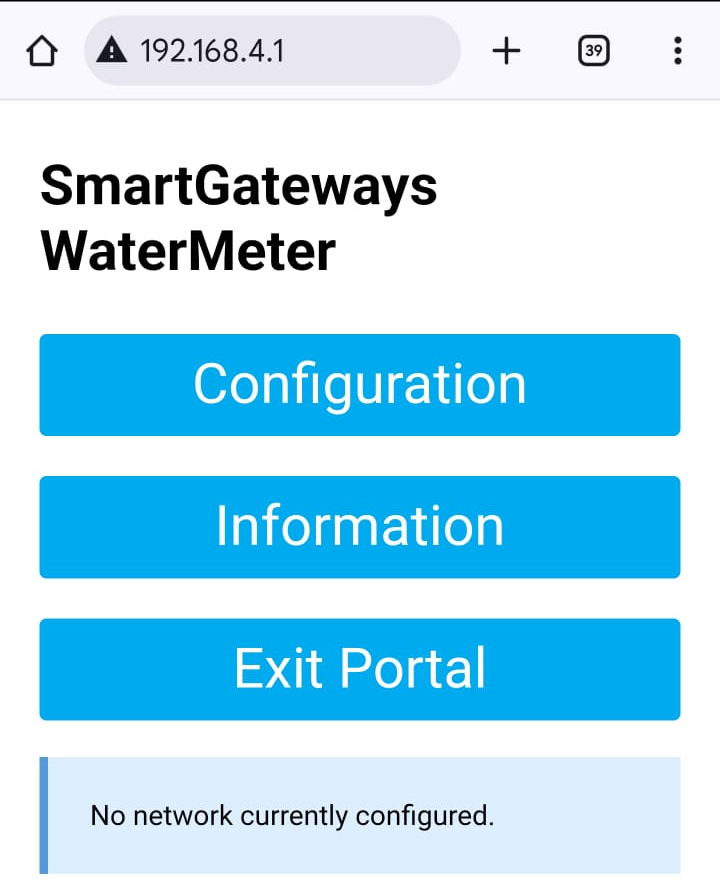
In the Configuration section, “type” the SSID of your WIFI. NB: I have been struggling with that part until I typed manually the SSID in both text fields “SSID” and “SSID1”. Before that, the authentication probably always failed and I had to reconnect on the Wifi of the Smart Meter to try again that config.
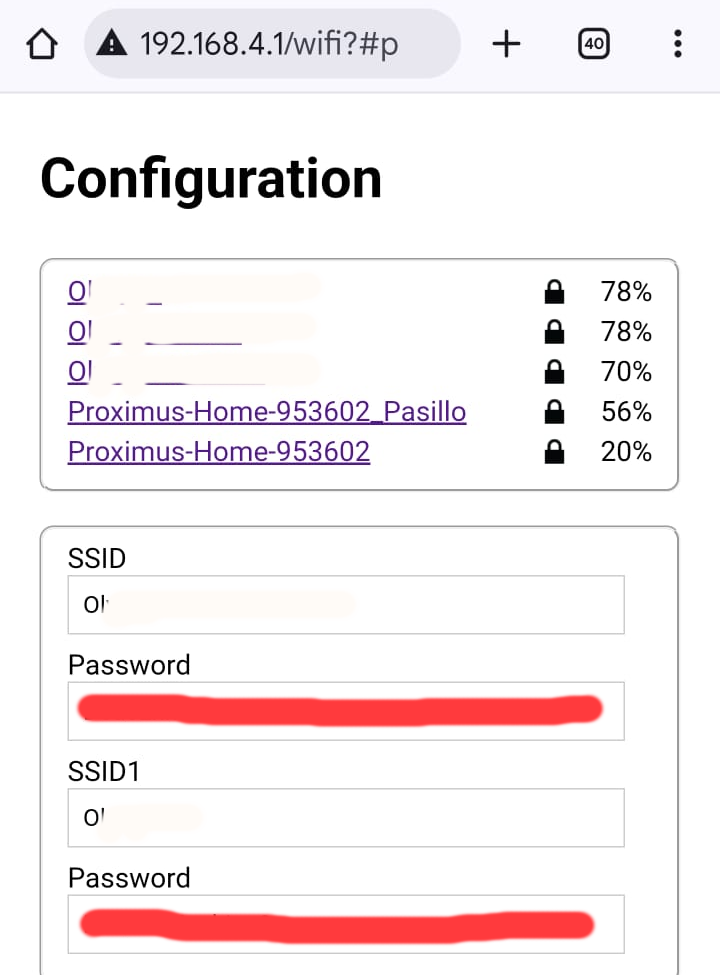
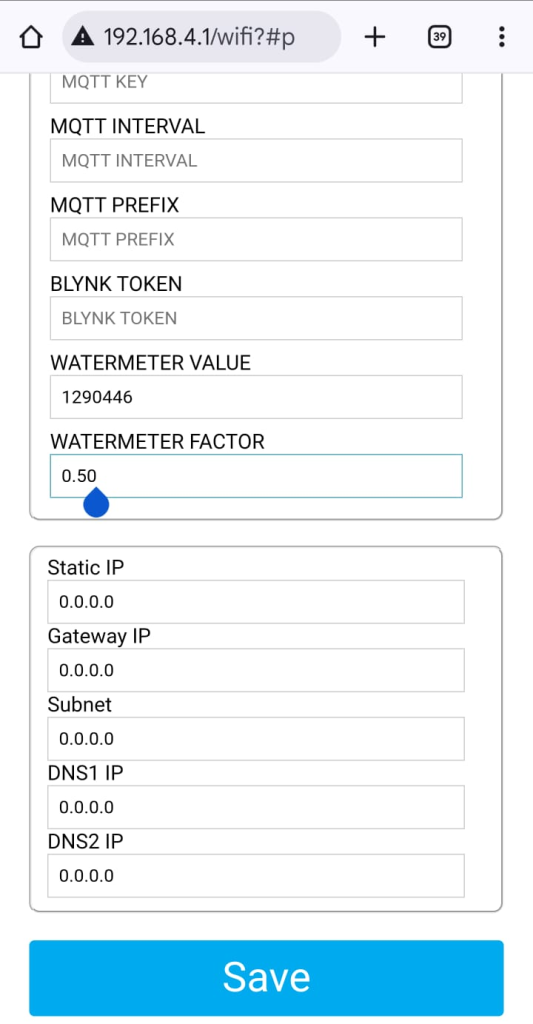
I suggest to not configure anything else at this stage here (MQTT stuff, WaterMeter Value, WaterMeter Factor). You can do it later. Also, if you intend to use a DHCP server, do not fill the IP details. Just press “Save”
You will see this page. Wait for 30 seconds for the Smart Meter to restart and connect to your local network.
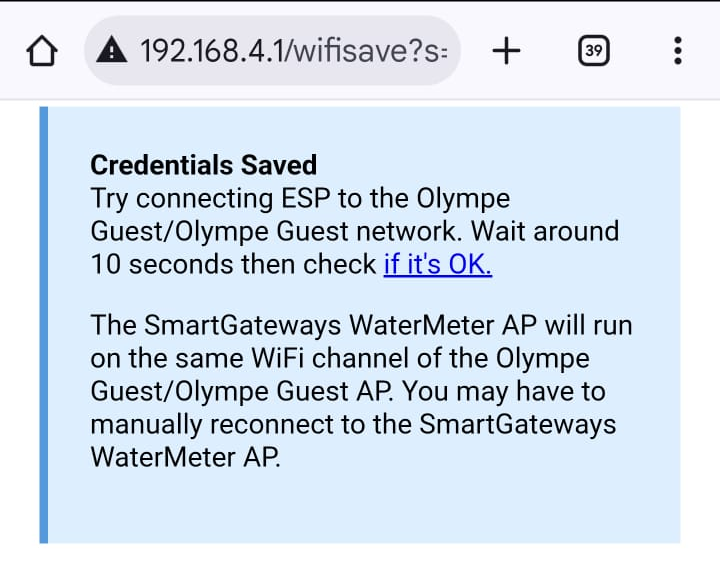
You can confirm check, in the Wifi connection settings page of your mobile, that the network SSIS “SmartGateways xxxxx” does not reappear. If it does, it means your Smart Meter failed to connect to your local network. Go back to 192.168.4.1
If you succeeded in connecting into your local network, you will have to authenticate in the Smart Meter using the login “admin” and the password “smartgateways” on the port 82
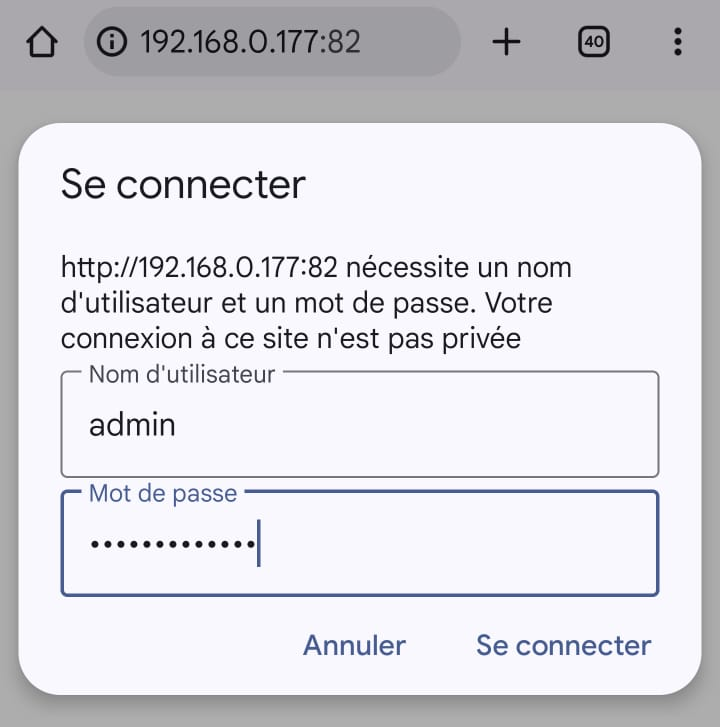
You can now change the login & password or set your parameters like the current value from your water meter and its factor (litter per pulse)
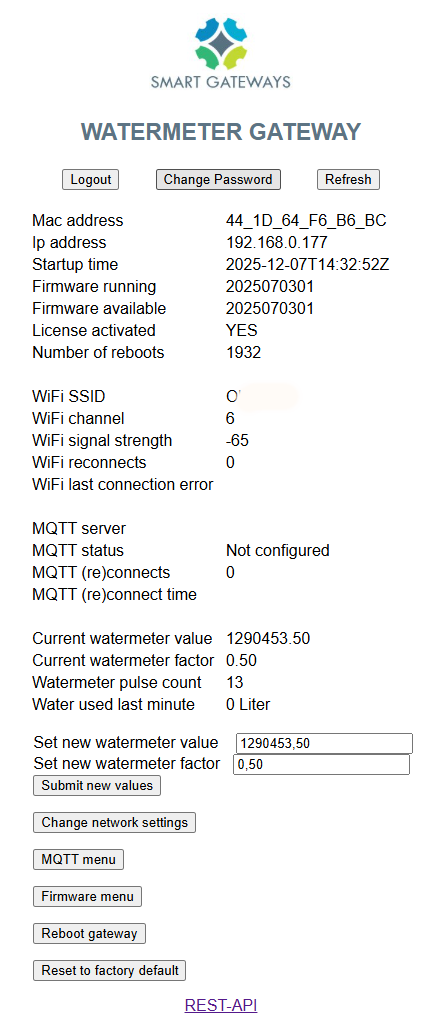
Et voilà 🙂

Leave a Reply